> ## Documentation Index
> Fetch the complete documentation index at: https://docs.uzolabs.xyz/llms.txt
> Use this file to discover all available pages before exploring further.
# Connect a wallet
> Add BOT Chain mainnet and testnet to MetaMask, either through Chainlist or by entering the network values yourself.
Add BOT Chain to MetaMask so you can see your balance, sign transactions and use dApps on mainnet and testnet. Other EVM wallets work the same way.
## What you'll do
* Add **BOT Chain testnet** by hand (Chainlist doesn't list it correctly).
* Add **BOT Chain mainnet** through Chainlist or by hand.
## Prerequisites
* [MetaMask](https://metamask.io/download/) installed in your browser.
BOT Chain also has its own wallet, BO Wallet. See [BOT Chain's quick guide](https://dev-docs.botchain.ai/docs/Developers/quick-guide/) for details.
## Network values
| Field | Value |
| - | - |
| Network name | `BOT Chain Testnet` |
| RPC URL | `https://rpc.bohr.life` |
| Chain ID | `968` |
| Currency symbol | `tBOT` |
| Block explorer URL | `https://scan.bohr.life` |
| Field | Value |
| - | - |
| Network name | `BOT Chain` |
| RPC URL | `https://rpc.botchain.ai` |
| Chain ID | `677` |
| Currency symbol | `BOT` |
| Block explorer URL | `https://scan.botchain.ai` |
The faucet and BOTScan show the testnet token as `BOT`. You can use either `tBOT` or `BOT` as the symbol in your wallet; `tBOT` makes it easier to tell the networks apart.
## Add testnet by hand
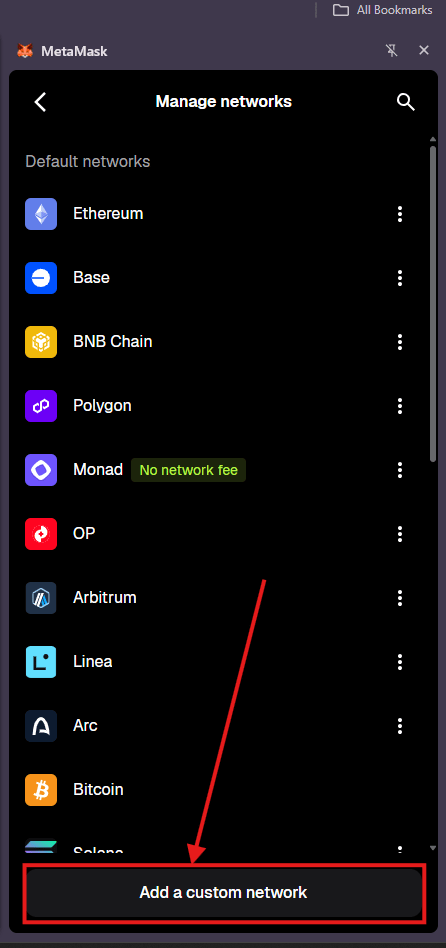
In MetaMask, open the network menu at the top left and choose **Add a custom network**.
 Fill in each field from the **Testnet** tab above, then click **Save**.
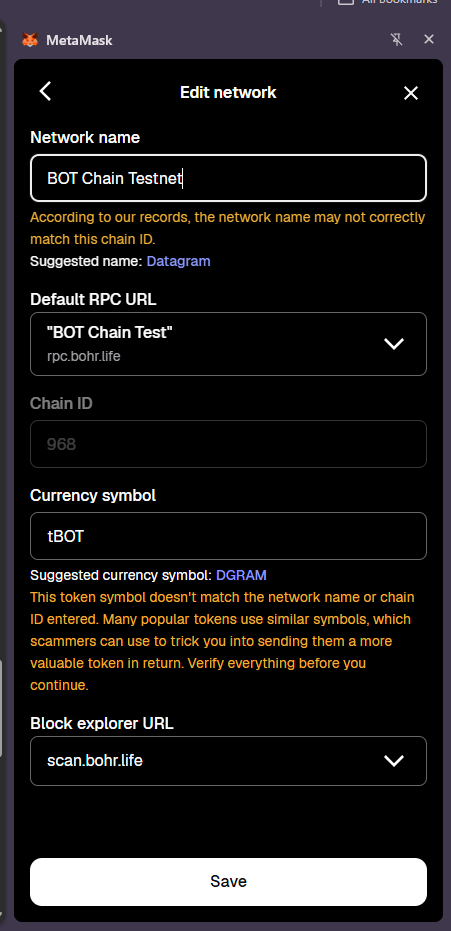 MetaMask shows orange warnings on this form. They're expected; see the note below.
Choose **BOT Chain Testnet** from the network menu. Your balance shows in tBOT.
Chain ID 968 is registered to a different network, Datagram, on [Chainlist](https://chainlist.org) and in the public chain registry. Don't add testnet through Chainlist.
Because of that, MetaMask warns that the network name may not match chain 968 and suggests **Datagram**. It also warns that the currency symbol doesn't match and suggests **DGRAM**. Ignore both suggestions and keep `BOT Chain Testnet` and `tBOT`. The warnings are safe to dismiss only if the RPC URL is exactly `https://rpc.bohr.life` and the explorer is `https://scan.bohr.life`. If either is different, stop and check the [Networks](/reference/networks) page.
## Add mainnet
1. Open [BOT Chain Mainnet on Chainlist](https://chainlist.org/chain/677).
2. Check that the chain ID is 677 and the explorer is `scan.botchain.ai`.
3. Click **Connect Wallet** and approve the connection in MetaMask. The button then changes to **Add to MetaMask**. Click it and approve the request.
MetaMask shows orange warnings on this form. They're expected; see the note below.
Choose **BOT Chain Testnet** from the network menu. Your balance shows in tBOT.
Chain ID 968 is registered to a different network, Datagram, on [Chainlist](https://chainlist.org) and in the public chain registry. Don't add testnet through Chainlist.
Because of that, MetaMask warns that the network name may not match chain 968 and suggests **Datagram**. It also warns that the currency symbol doesn't match and suggests **DGRAM**. Ignore both suggestions and keep `BOT Chain Testnet` and `tBOT`. The warnings are safe to dismiss only if the RPC URL is exactly `https://rpc.bohr.life` and the explorer is `https://scan.bohr.life`. If either is different, stop and check the [Networks](/reference/networks) page.
## Add mainnet
1. Open [BOT Chain Mainnet on Chainlist](https://chainlist.org/chain/677).
2. Check that the chain ID is 677 and the explorer is `scan.botchain.ai`.
3. Click **Connect Wallet** and approve the connection in MetaMask. The button then changes to **Add to MetaMask**. Click it and approve the request.
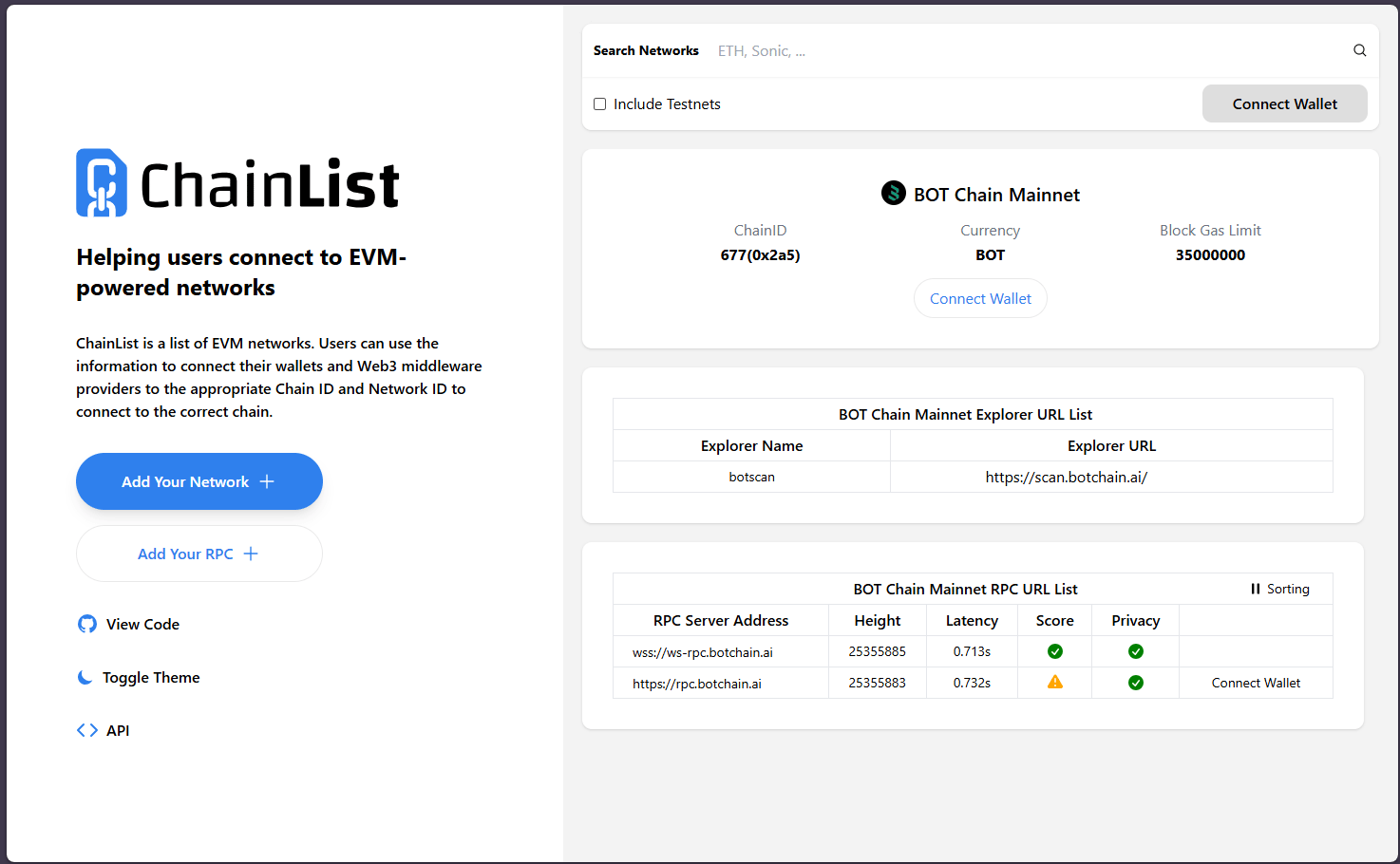 Follow the same steps as testnet, using the values in the **Mainnet** tab above.
Mainnet uses real BOT. Practise on testnet first, and never paste a seed phrase or private key into a website. See [Security](/reference/security).
## Verify it worked
1. Switch to **BOT Chain Testnet** in MetaMask.
2. Copy your address and open `https://scan.bohr.life/address/YOUR_ADDRESS` in your browser.
3. The balance on BOTScan matches the balance in MetaMask.
If your balance is zero, claim tokens from the [faucet](/get-started/bot-chain/get-testnet-tokens).
## Troubleshooting
The chain ID field must match the RPC URL. Use 968 with `https://rpc.bohr.life` and 677 with `https://rpc.botchain.ai`. Check for a trailing space or a typo in the URL.
For chain 968 this is expected, because the public registry lists a different network under that ID. Continue only if the RPC URL is exactly `https://rpc.bohr.life`.
Check that MetaMask is on **BOT Chain Testnet**, not mainnet or another network. Then check the address on BOTScan testnet. If BOTScan also shows 0, the claim didn't go through; see [Get testnet tokens](/get-started/bot-chain/get-testnet-tokens).
## Next steps
Fund your wallet for free.
Let users connect their wallet to your app.
This documentation is built and hosted on [Mintlify](https://mintlify.com), a developer documentation platform.
Follow the same steps as testnet, using the values in the **Mainnet** tab above.
Mainnet uses real BOT. Practise on testnet first, and never paste a seed phrase or private key into a website. See [Security](/reference/security).
## Verify it worked
1. Switch to **BOT Chain Testnet** in MetaMask.
2. Copy your address and open `https://scan.bohr.life/address/YOUR_ADDRESS` in your browser.
3. The balance on BOTScan matches the balance in MetaMask.
If your balance is zero, claim tokens from the [faucet](/get-started/bot-chain/get-testnet-tokens).
## Troubleshooting
The chain ID field must match the RPC URL. Use 968 with `https://rpc.bohr.life` and 677 with `https://rpc.botchain.ai`. Check for a trailing space or a typo in the URL.
For chain 968 this is expected, because the public registry lists a different network under that ID. Continue only if the RPC URL is exactly `https://rpc.bohr.life`.
Check that MetaMask is on **BOT Chain Testnet**, not mainnet or another network. Then check the address on BOTScan testnet. If BOTScan also shows 0, the claim didn't go through; see [Get testnet tokens](/get-started/bot-chain/get-testnet-tokens).
## Next steps
Fund your wallet for free.
Let users connect their wallet to your app.
This documentation is built and hosted on [Mintlify](https://mintlify.com), a developer documentation platform.